By Bryony Aster Rook · Publisher: brightchancespark Screen Boundaries Notebook
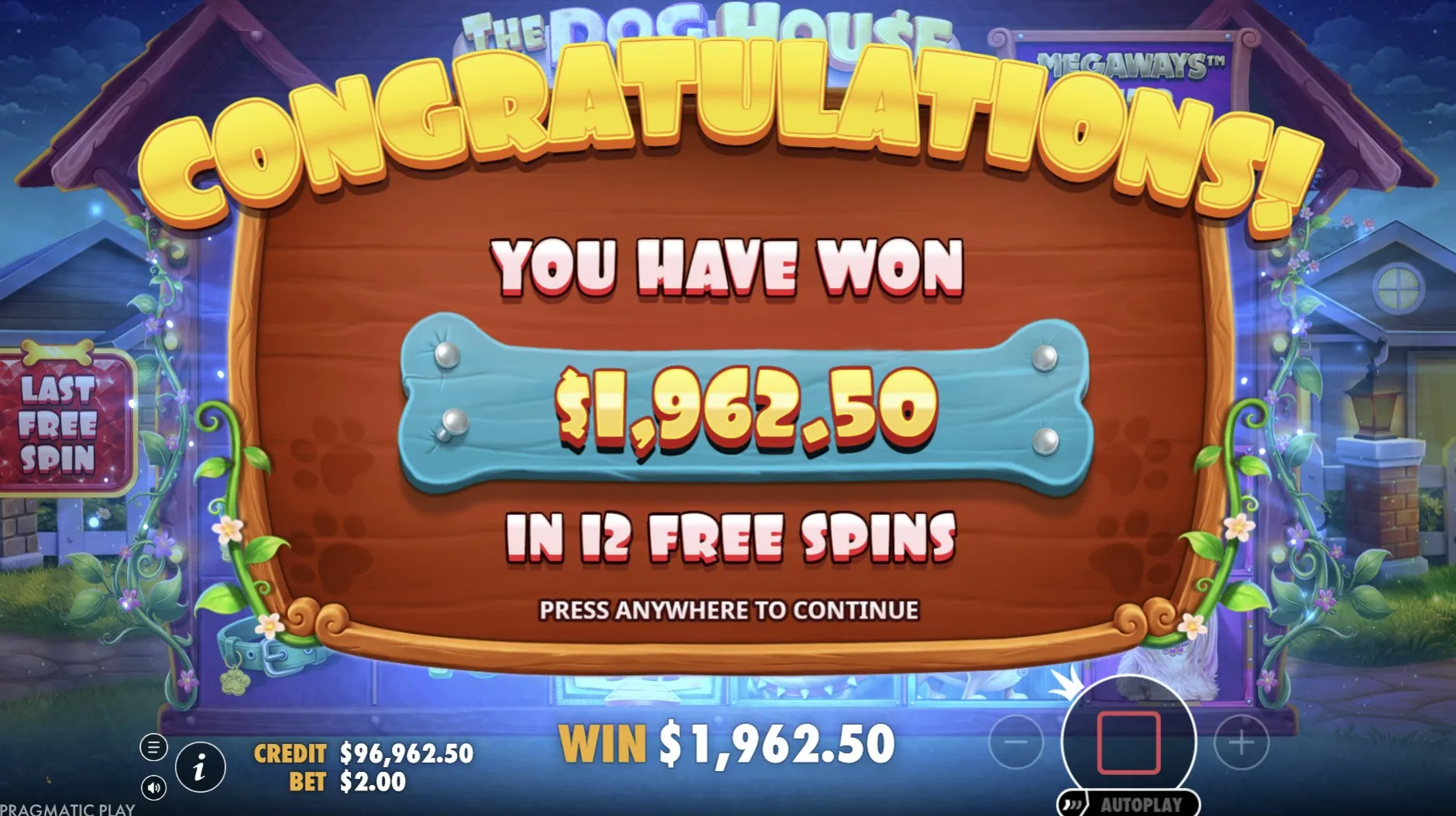
Recognise the two layers
On brightchancespark, the game pages place a game inside the surrounding website. The logo and navigation belong to that outer page; the game brings its own display into the space below. Recognising this boundary helps when browser game controls seem confusing. A website menu can take you to another page without changing a setting inside the game you were viewing.
The supplied game pages use embedded frames. For a reader, the practical point is that the game area can behave differently from the surrounding text. A gesture may scroll the page in one place and meet a game control in another. Before tapping, look for the edge of the play area and identify which part of the screen currently has your attention.
This September 2026 guide is about reading those boundaries, not promising that every device will show the same arrangement. Browser toolbars, screen size and orientation can change the space available. Begin with the view in front of you. A remembered button position from another phone is less useful than a clear label on the screen you are using now.
Give the controls space
Small screens make nearby actions harder to distinguish. Before beginning, find the information control, sound setting and any visible exit or fullscreen option. Use only the options actually offered. If a symbol has no clear meaning, look for a label or an explanation instead of trying it repeatedly. Learning where things are does not require starting a round.
A first look before play
- Let the page and game finish loading.
- Identify the website menu and the game area.
- Read the available settings without starting a round.
- Choose a view in which labels and controls are clear.
Changing orientation may give a control more room, but it can also rearrange the whole display. Pause before rotating the device, then inspect the new layout. Do not assume that the same spot still performs the same action. Browser game controls are easier to use when your next tap follows a fresh look rather than a movement remembered from the previous view.
| Area | What to identify |
|---|---|
| Website | Home, Games and article navigation |
| Game | Its own rules, labels and settings |
| Browser | Tabs, address bar and page navigation |
A readable setting is one you can understand without leaning on guesswork. If the page text is clear but the embedded area is cramped, treat those as separate observations. Enlarging the surrounding article does not guarantee that every game label will resize with it. You can choose a larger screen or leave the game for another time if the available view remains awkward.
Return with a fresh look
A phone call, another tab or a locked screen can interrupt a session. On return, take a moment to see whether the game is still loading, showing an instruction or waiting for an action. Avoid repeating taps while the display is unsettled. Browser game controls need to be read in their current state, even when the interruption seemed too brief to matter.
- Check the visible title and current screen first.
- Read any message before choosing an action.
- Do not treat a changed balance as proof of a saved session.
The website’s free-play description does not explain every detail of progress storage. A familiar browser window alone cannot tell you what was saved or restored. If the game provides information about resuming, read that wording. Otherwise, leave the question open. Clearing browser data or refreshing repeatedly is not a reliable way to establish what happened to an earlier session.
Once the display is clear, separate a control question from a rule question. Knowing where to open help is different from understanding a bonus condition; the bonus-name article follows that second task. When another person is beside you, sharing a discovery also means allowing time to read before passing the device.
Author’s opinion
I judge browser game controls by whether I can tell what my next action will do. Clear boundaries matter more to me than fitting everything into the smallest possible view. If I cannot read a label comfortably, I prefer to stop and change the setup. A short pause is a useful part of play when it replaces a guessed tap with an understood choice.